

Why Is My C: Drive Full? Hidden Windows Folders Explained
You open This PC, see the C: drive bar glowing red, then check Desktop, Documents, Downloads — and nothing obvious explains it. The math doesn’t add up.
You’re not doing anything wrong. Windows hides gigabytes in places most people never browse. This guide shows you exactly where to look, in a safe order, with specific folder paths you can check yourself.
Why the obvious folders don’t explain it
Your Desktop and Downloads show files you created or saved. But Windows is constantly writing data on your behalf — updates, cached pages, installer leftovers, app logs — into folders that sit completely outside your normal view.
Think of it this way: your Downloads folder is the dining table. The C: drive is the entire house — including the basement, attic, and every cupboard. The table can look spotless while the house is packed full.
The real culprits — with actual folder paths
Here are the most common space hogs, roughly ranked by how often they surprise people.
1. Windows Update leftovers — up to 10–20 GB
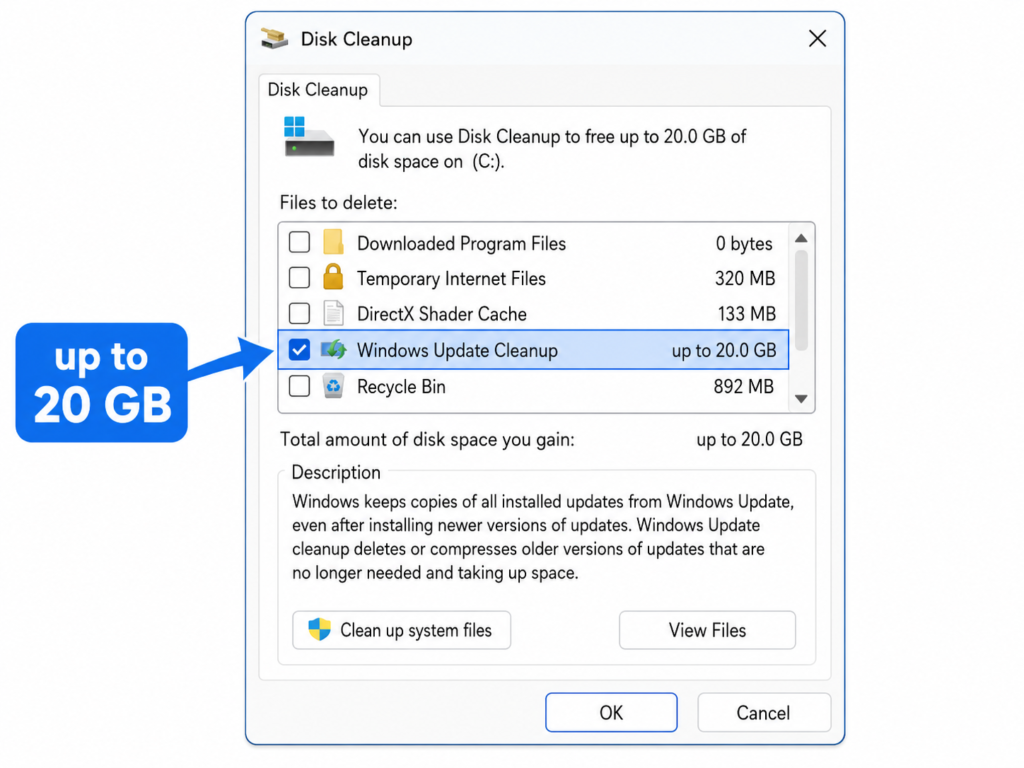
After major updates, Windows keeps a full rollback copy in case something breaks. Once you’re confident the update is stable, this is safe to clean and is usually the single biggest recovery on most PCs.
Where it lives:
C:WindowsSoftwareDistributionDownload
C:WindowsTemp
How to clean it safely: Search for Disk Cleanup → Run as administrator → tick Windows Update Cleanup. This is the highest-impact single step on most machines.
2. Temporary files — typically 1–8 GB
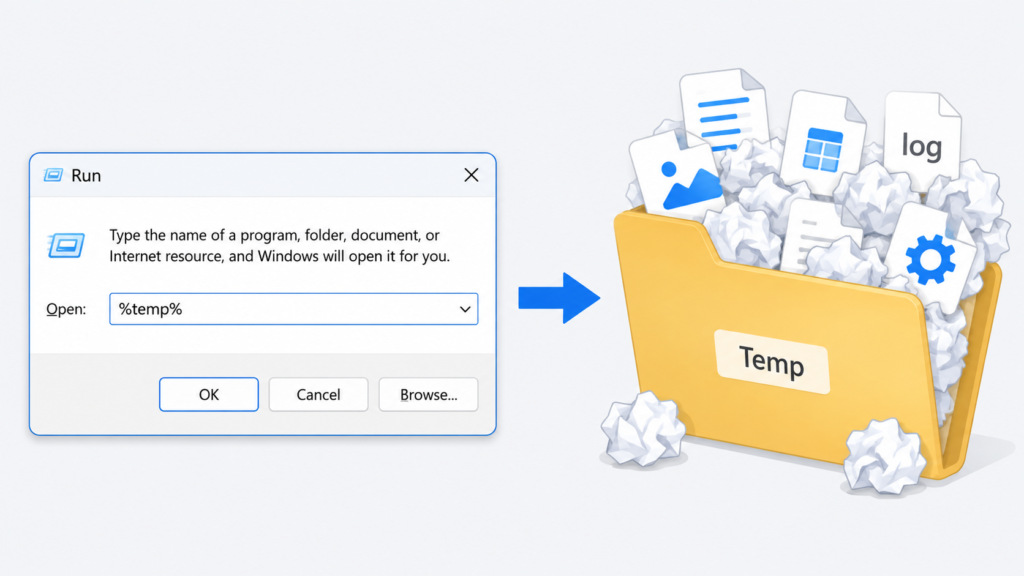
Apps and installers create temp files and don’t always clean up after themselves. This folder is designed to be disposable — deleting it is safe.
How to get there instantly: Press Win + R, type %temp%, hit Enter. You’ll land directly in your personal temp folder. Select all → Delete. Skip anything flagged “in use” — that’s normal.
Also check C:WindowsTemp — this requires admin rights but often holds more.
3. Browser cache — 500 MB to 3 GB
Chrome and Edge store website images, scripts, and media locally to load pages faster. It grows silently in the background over months.
Chrome cache location:
C:UsersYourNameAppDataLocalGoogleChromeUser DataDefaultCacheEdge cache location:
C:UsersYourNameAppDataLocalMicrosoftEdgeUser DataDefaultCacheEasier route: In Chrome or Edge, press Ctrl + Shift + Delete → select Cached images and files → Clear data.
4. The AppData folder — the biggest surprise for most people

This hidden folder is where apps store settings, local data, and cache — sometimes accumulating years of files you never knew existed.
How to open it: Press Win + R, type %appdata% for the Roaming subfolder. Also check %localappdata% for the Local subfolder — this one is usually larger.
Common heavy hitters inside AppData:
- Spotify — offline download cache
- Discord — media and image cache
- Slack / Teams — meeting recordings, file cache
- Game launchers — shader caches, update staging files
Important: Don’t bulk-delete the entire AppData folder. Instead, open a specific app’s folder and look for a Cache or Temp subfolder inside it — those are safe to clear.
5. Game installs and leftover launcher data — 10–100+ GB
If you ever installed a game launcher and later removed it, the game files themselves often stay behind untouched. These can be enormous.
Steam default path:
C:Program Files (x86)SteamsteamappscommonEpic default path:
C:Program FilesEpic GamesEven if the launcher is gone, these folders may still be there. Safe to delete if you’re certain you won’t play those games again.
6. The Recycle Bin — obvious, but often forgotten
Right-click the Recycle Bin on your Desktop → Empty Recycle Bin. Files you deleted weeks ago are still sitting there consuming real space until you do this.
7. Hibernation file — 4–16 GB on laptops
If you don’t use hibernate mode (different from Sleep), Windows permanently reserves a large file for it on disk.
Location: C:hiberfil.sys (hidden system file — not visible in Explorer by default)
To remove it, open Command Prompt as administrator and run:
powercfg /h offOnly do this if you never use hibernate. Normal Sleep mode continues to work perfectly without it.
Get a full map of your disk in seconds
Instead of guessing folder by folder, the fastest approach is to scan your entire C: drive and see every folder as a ranked size breakdown — biggest folders at the top, with a full visual map so nothing stays hidden.
WhatAteMyDisk on CreatorHex does exactly that: it scans your drive and shows you a clear, ranked view of what’s consuming space — so you can decide what to remove with confidence rather than guessing.
Note on scan time: results depend on your drive size and whether you’re on an HDD or SSD. Most modern SSDs finish a full scan quickly. The important thing is that you see the actual breakdown before you delete anything.
Recommended cleaning order — lowest risk first
- Empty the Recycle Bin
- Check Downloads — delete old installers and files you won’t need again
- Run Disk Cleanup as administrator → include Windows Update Cleanup
- Clear browser cache via browser settings (Ctrl + Shift + Delete)
- Press Win + R → type
%temp%→ delete everything you can - Use WhatAteMyDisk to scan C: and identify your single largest unexpected folder
- Research any unfamiliar folder path before deleting — never remove unknown system folders
For technicians: the professional workflow
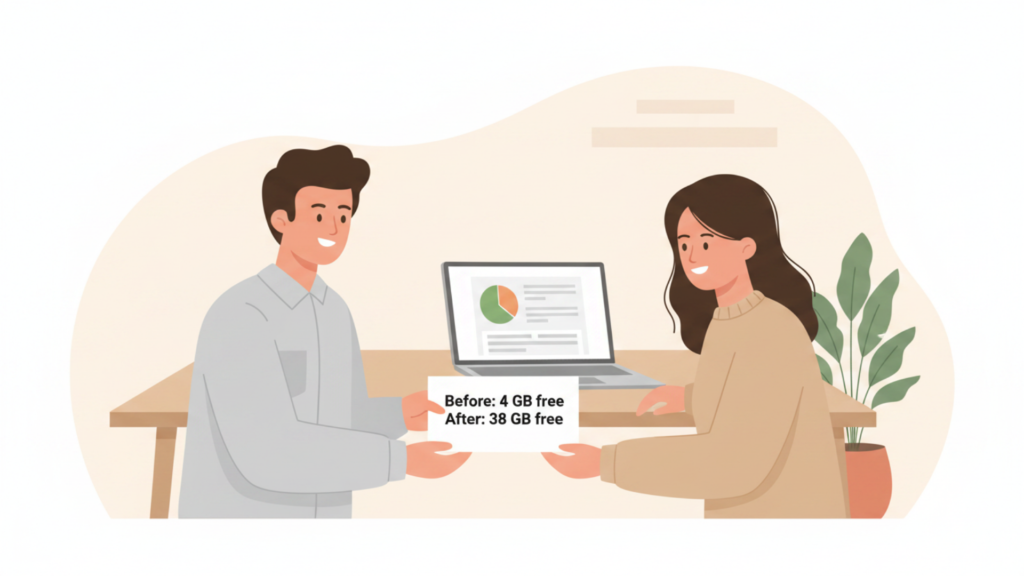
In a laptop service setting, speed and trust both matter. The most reliable approach is repeatable and transparent:
- Run a full disk scan first — share the size breakdown with the customer so they approve every deletion
- Separate standard housekeeping (temp files, browser cache, Recycle Bin) from needs customer sign-off (AppData app folders, old game data, hibernation file)
- Document before-and-after free space figures — customers trust receipts, not verbal descriptions
A clear disk breakdown reduces back-and-forth, prevents accidental deletion disputes, and builds the kind of trust that brings customers back.
FAQ
Will deleting temp files break anything?
No. Temp files are designed to be discarded. Apps recreate the ones they need next time they run. Files that are currently in use simply won’t delete — Windows will skip them automatically.
Is AppData safe to delete?
Not in bulk. But individual Cache or Temp subfolders inside a specific app’s AppData folder are generally safe to clear. The key is being specific — know which app’s folder you’re in before deleting.
My C: drive fills up again within days. Why?
Something on your system is actively writing large amounts of data. Common causes: Windows Update downloading in the background, a video editor or game writing large project/cache files, or a backup app storing files on C: instead of an external drive. Scan your disk twice a week apart and compare — whatever grew the most is your answer.
Is low disk space actually dangerous?
Yes, once it gets critically low. Windows needs free space on the system drive to run updates, install apps, create restore points, and handle temporary work. When the drive is nearly full, all of these start failing — and performance suffers noticeably. Fix it before the bar turns red.
Do I need a paid cleaner app?
No. The manual steps above recover the majority of wasted space for free. Paid tools mainly save time — they’re useful when you want a faster, repeatable process rather than doing it manually each time. Be cautious of any tool that promises enormous instant gains without showing you exactly what it’s deleting.
Bottom line
A full C: drive is a visibility problem before it’s a storage problem. Once you can see exactly which folders are large, deciding what to delete becomes straightforward — and safe.
Start with Disk Cleanup and %temp% for the quick wins. Then use WhatAteMyDisk to find anything still hiding — so you clean with confidence, not guesswork.